
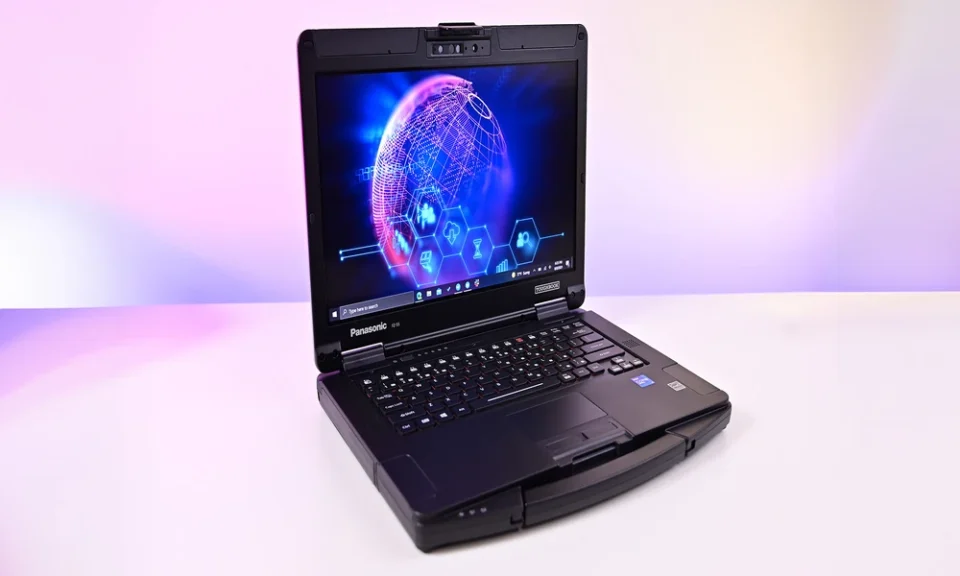
Configuring a panasonic toughbook 55 starts with a deceptively simple question: what must this computer connect to during a normal working day? The answer can matter more than choosing the fastest processor in a menu. A machine that matches the job’s equipment, applications, and charging arrangements is easier to put to work than one selected from optional extras alone.
The model’s configuration choices make a written requirements list especially useful. Start with the task, identify the necessary hardware, and then ask the supplier to confirm the complete combination. That keeps an available feature from being mistaken for an included feature.
Map the connections that make the job possible
List every device the laptop needs to communicate with, using the actual manufacturer and model numbers. Include diagnostic equipment, printers, scanners, and other peripherals already in use. Ask the people doing the work to check the list against their daily routine.
For each connection, record the required cable, interface, and software. A familiar connector does not settle whether the full setup will work. Have IT or the equipment vendor confirm the intended arrangement before treating it as a purchasing requirement.
The linked configuration page lists rear expansion choices that include serial, display, USB, and Ethernet combinations. These are selections to review, not a promise that every connection appears on every unit. Ask which ports will be present in the exact configuration being quoted.
Keep adapters visible in the plan. If an adapter is proposed, identify its part number and test it with the required equipment where practical. Do not let an essential connection depend on an unnamed accessory that somebody plans to find after delivery.
Give each expansion choice a specific purpose
The configuration page also separates options into different expansion areas, including a universal bay and a front expansion area. That layout is a reason to review the proposed combination carefully. Ask the supplier which selections can coexist and which require a tradeoff.
For example, the page lists storage-related options and a barcode reader among its universal-bay choices. If your team needs both functions, describe the requirement before choosing parts. Let the supplier confirm an appropriate arrangement rather than assuming that every listed option can be installed together.
Separate a current requirement from a possible future need. A feature used every day deserves a clear place in the order, while a speculative feature needs a reason to justify its cost. Future flexibility is useful only when the relevant upgrade path is confirmed.
Keep a record of rejected options as well as selected ones. A short note explaining why a component was unnecessary can prevent the same discussion from restarting during approval. It also makes the final configuration easier for another employee to review.
Plan power around the places work happens
Write down where users will start the day, where they can charge, and whether the laptop travels between locations. Include the intended dock or vehicle setup if there is one. These details should shape the power discussion before an order is placed.
Ask the supplier to identify the supplied battery and power adapter, plus any additional equipment needed for the proposed configuration. If a second battery is being considered, confirm how that choice affects other selected hardware. Keep the answer attached to the quote.
Treat a published runtime figure as something to clarify, not a schedule guarantee. Ask which configuration and test conditions it describes. A representative work session is a better way to assess whether your own applications and settings fit the planned charging routine.
Include responsibility in the plan. Decide who charges spare equipment, where it is stored, and how users report a missing adapter. Hardware choices are only part of keeping a shared computer ready for the next shift.
Choose memory and storage from the workload
Give IT a list of the applications users need to run together. Include reference documents, image files, and any local data the job requires. Ask for a configuration recommendation based on that workload rather than on the largest numbers in the menu.
Consider where information will be stored and how it will be protected under company policy. Additional local capacity should serve a defined need. It should not become an informal substitute for an agreed backup and data-management process.
Before approving the configuration, check these items together:
- The exact model revision and installed processor.
- Memory and storage included in the quoted price.
- Required ports and confirmed expansion combinations.
- Battery, adapter, and any docking equipment.
- Operating system, software requirements, and setup responsibilities.
Ask for an itemized quote that uses the same details. If the supplier proposes a substitute, have IT review the change before accepting it. A small difference in the order can matter if it affects the task that drove the purchase.
Make the configuration easy to verify on arrival
When the Panasonic Toughbook 55 arrives, compare it with the written order before deploying it. Check the installed components and connect the required peripherals using representative work data. Resolve discrepancies while the purchase details and correspondence are readily available.
When working with Rugged Computing, Inc, provide your connection list, power plan, and application requirements together. Request confirmation of the complete configuration rather than approving optional items in isolation. That gives the supplier a concrete brief and gives your team a machine it can check against the job.
