
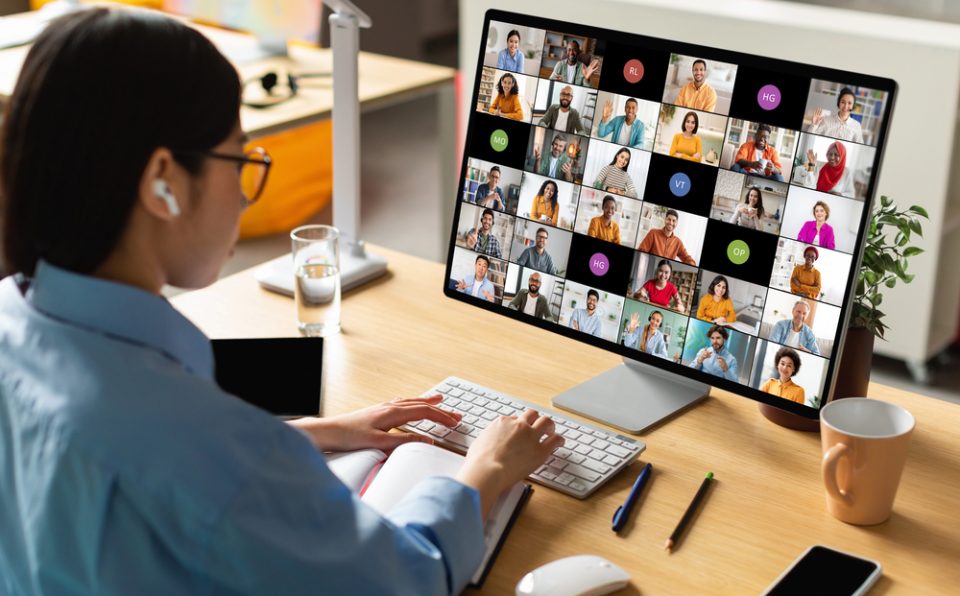
A five-minute browser hardware test can prevent an awkward start to a video meeting, a frustrating gaming session, or a remote-work delay. Before an important call or gaming session, an online hardware test can quickly confirm that your essential devices are responding. A simple keyboard test and webcam test can catch dead keys, input problems, camera permission issues, poor framing, or the wrong camera selection before they interrupt what you are doing.
The same browser-based check can include a microphone test and speaker test, making it a practical first step for basic computer diagnostics without installing extra software. These quick checks can show whether the browser can see the correct input or output device, whether permissions are blocking access, and whether common hardware is working as expected.
Why Test Your Hardware Before You Need It?
Hardware problems often become obvious only when the device is needed. A laptop may choose its built-in microphone instead of a USB headset. A webcam may be blocked by browser permissions. A mouse button may double-click, or a game controller may show stick drift. Running an online hardware test beforehand gives you time to fix these issues without the pressure of an active call, class, stream, or game.
What Can You Test Directly in a Browser?
Modern browsers can interact with common input and media devices through built-in web technologies. Camera and microphone access normally requires your permission, while keyboard and mouse input can usually be tested immediately. These checks are useful for everyday computer diagnostics because they show how the device behaves in the same browser environment used by many video-call and web apps.
| Device | Useful browser checks |
| Keyboard | Key presses, modifiers, repeated keys, and combinations |
| Mouse | Buttons, wheel, dragging, pointer movement, and responsiveness |
| Webcam | Live preview, camera selection, framing, and basic image quality |
| Microphone | Input level, waveform, selected device, and playback |
| Speakers / Headphones | Left and right channels plus test tones |
| Monitor | Solid colors, gradients, uniformity, motion, and resolution |
| Gamepad | Buttons, triggers, sticks, axes, deadzone, and vibration |
Check the Keyboard and Mouse First
A keyboard test should react as you press individual keys, including Shift, Ctrl, Alt, function keys, and common shortcuts. If one key fails to register consistently, try another USB port or browser before deciding that the keyboard is faulty. For a mouse, test primary and secondary clicks, middle click, scrolling, dragging, and smooth pointer movement. Unexpected double-clicks or missed button presses can be signs of wear.
Test Your Webcam Before a Video Call
A webcam test lets you confirm that the browser can access the camera and that the image looks usable. Check lighting, focus, framing, and camera selection, especially if your computer has both a built-in camera and an external webcam. If the preview is blank, review the site permission in your browser, check operating system privacy settings, and close other apps that may already be using the camera.
Test the Microphone and Speakers Together
Audio is one of the most common sources of trouble in remote work. A microphone test should show activity while you speak. If the input is too low or silent, check the physical mute switch, selected microphone, input level, and browser permission. A short record-and-playback sample is useful because it can expose background noise, clipping, distortion, or the wrong microphone being used.
Run a speaker test or headphone test as well. Play left and right channels separately and listen for missing audio, reversed channels, crackling, or one side being quieter than the other. This is especially helpful when switching between Bluetooth headphones, USB headsets, monitor speakers, and built-in laptop audio.
Use One Site for a Quick Pre-Session Check
For a convenient set of browser-based checks, DeviceExam provides free tools for testing keyboards, mice, screens, microphones, webcams, speakers, gamepads, and other devices directly in the browser. The site says its camera and microphone streams are processed locally rather than uploaded, and it does not require an account or software download. That makes it useful when you want a quick check before a meeting, gaming session, online class, or remote-work shift.
Do Not Ignore the Monitor and Gamepad
Monitor tests can make display defects easier to see than normal browsing does. Full-screen solid colors can reveal stuck or dead pixels, uneven brightness, color tinting, or backlight bleed. Gradients and motion checks can also help you spot banding or unusual motion behavior.
For a game controller, press every button and trigger, then move each stick slowly through its full range. Watch whether the sticks return cleanly to center when released. Unwanted movement while the controller is untouched can indicate stick drift or a deadzone setting that needs adjustment.
What If an Online Hardware Test Fails?
A failed browser test does not automatically mean the hardware is broken. Check the simple causes first:
- Confirm the cable, Bluetooth connection, battery, or USB receiver.
- Reconnect the device and refresh the browser page.
- Make sure the correct input or output device is selected.
- Review browser permissions for the camera or microphone.
- Try a different browser or USB port.
- Close apps that may already be using the device.
- Restart the computer if the problem continues.
If the same device fails in several browsers and applications, the problem is more likely to be related to the device, driver, cable, or operating system rather than the website used for testing.
Browser Tests Are Not Full Hardware Diagnostics
Browser tools are excellent for checking whether peripherals work, but they cannot fully diagnose internal components such as RAM, storage drives, CPU, GPU, motherboard, or power supply. If the computer is crashing, overheating, showing memory errors, reporting drive problems, or losing performance under load, use operating system diagnostics, manufacturer utilities, or dedicated hardware-testing software.
Frequently Asked Questions
Can I test computer hardware online without installing software?
Yes. Common peripherals such as keyboards, mice, webcams, microphones, speakers, monitors, and gamepads can be functionally checked in a browser. Internal component testing usually requires dedicated tools.
Why does a webcam or microphone test ask for permission?
Browsers require permission before a website can access privacy-sensitive devices such as cameras and microphones. You can later change or remove that permission in the browser settings.
What should I do if my microphone works in a browser test but not in a meeting app?
Check the meeting app itself. It may be using a different microphone, have its own mute setting, or lack operating system permission. Select the same microphone that worked during the browser test.
Can an online hardware test help before gaming?
Yes. It can verify keyboard input, mouse buttons, headset audio, microphone input, and gamepad controls before you launch a game. GPU performance and system stress testing still require dedicated software.
Final Thoughts
You do not need a full diagnostic suite every time you want to know whether your webcam, keyboard, microphone, speakers, mouse, or controller is ready. A quick browser-based test can catch many practical problems in a few minutes. Check the devices you plan to use, confirm permissions and device selection, and move to deeper diagnostics only when a simple functional test suggests a larger issue.
